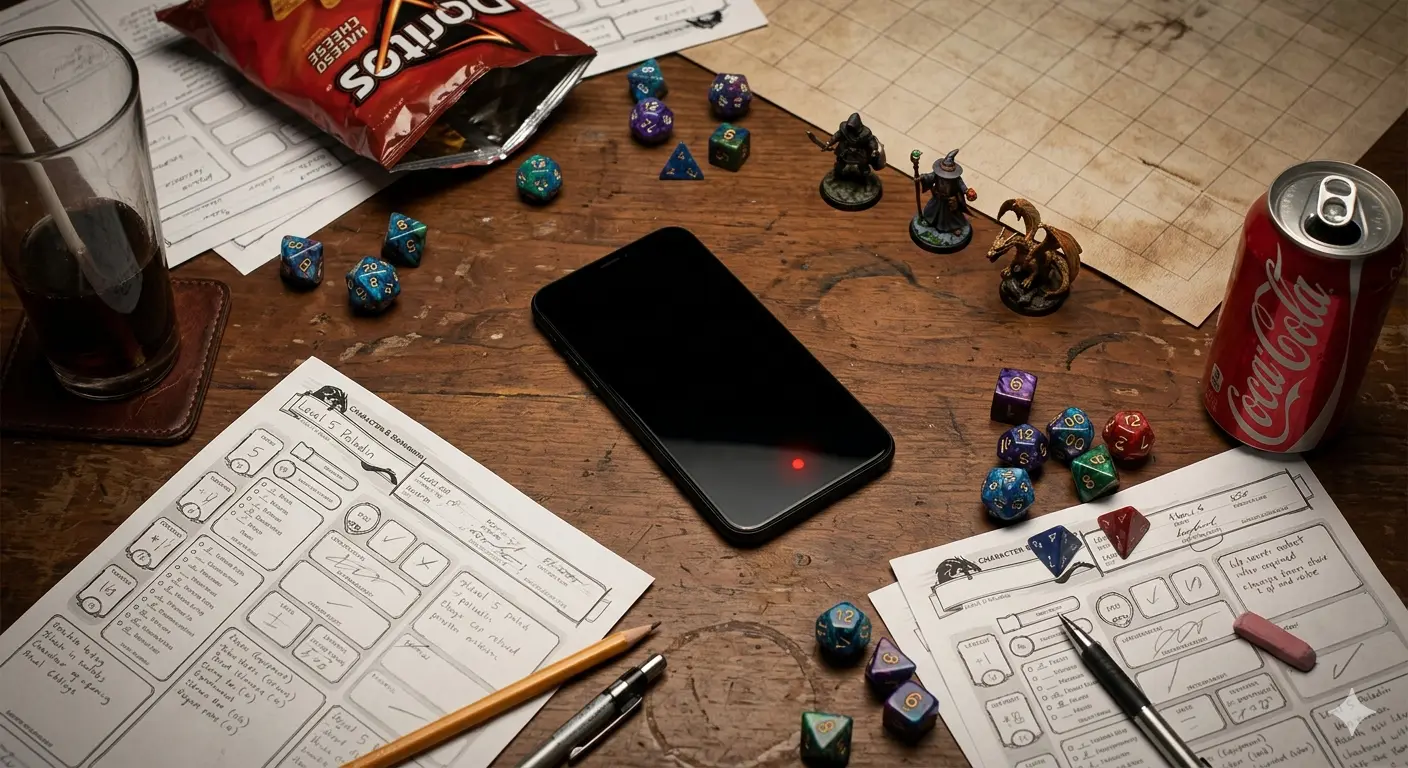
How to Record Your D&D Sessions (The Simple Setup That Actually Works)
A phone on the table and a free Discord bot cover 90% of tables — here's the exact setup for online, in-person, and hybrid games, plus what actually matters for transcription quality.
Recording your D&D sessions is one of those things that sounds more complicated than it is — and also occasionally turns out to be more complicated than it sounds. Usually both things happen in sequence, separated by one humbling technical failure.
But once you've got a working setup, it's the kind of thing you stop thinking about entirely. You hit record, you play your game, you have a recording. That's it.
The goal of this guide is to get you to that "stop thinking about it" stage as quickly as possible, with whatever setup matches how your table actually plays. Online tables are straightforward. In-person tables have a few more variables. Either way, you don't need specialized hardware or a recording engineering degree.
Let's get into it.
Why Bother Recording at All
Before the how, a quick case for the why — because some DMs aren't sure it's worth the added step.
The obvious answer is that a recording is a complete record. Nothing gets missed. Every NPC name, every decision, every improvised lore drop that became canon — it's all there. Notes, no matter how good, are always going to be selective. A recording isn't.
But the more practical answer is what you can do with the recording. A raw four-hour audio file isn't useful on its own — you're not going back to listen to the whole thing. What's useful is what you derive from it: a session recap you can share with your players, an updated campaign wiki, a reference you can search when you need to remember what the party decided about the thieves' guild in session nine.
Tools like Epicly exist specifically to turn a raw session recording into those useful outputs automatically. But even if you're just using the recording as a personal reference — something you can scrub through occasionally to find a specific moment — having it is better than not having it.
The barrier to recording is lower than most DMs think. For online games, it's almost zero effort. For in-person games, it's maybe five minutes of setup. If you're already running sessions, adding a recording is one of the highest-value, lowest-cost changes you can make to your DM workflow.
Online Sessions: This Is the Easy Part
If your table plays on Discord — which is most online tables — you already have everything you need. Discord lets bots join your voice channel and record the audio, and the best one for this is Craig.
Craig Bot (The One You Want)
Craig is free, it's been around for years, and it does one thing very well: it records every person in your voice channel on a separate audio track.
That last part matters more than it sounds. Separate tracks mean that if one player's microphone is hot or someone's dog decides to bark for thirty seconds, it doesn't ruin the whole recording. It also means transcription tools can identify who's speaking more accurately, which is useful when you want a readable summary of the session.
Setting up Craig:
Go to craig.chat and invite the bot to your Discord server. It takes about two minutes. From then on, whenever you want to record a session:
- Join your voice channel
- Type
/joinin any text channel where Craig can see it - Craig joins the voice channel and starts recording
- At the end of the session, type
/stopor just kick Craig from the channel - Craig sends you a download link in DMs with the multi-track recording
The files come in a few formats. For transcription tools, MP3 or M4A works fine. If you're using Epicly, any of the standard audio formats will work — just grab whichever is most convenient.
One important note: Craig records everyone in the voice channel, which means you should let your players know before you start recording. This is just good practice regardless of the legal requirements in your jurisdiction — people should know they're being recorded. In practice, most players are completely fine with it, especially once they understand the recording is being used for session recaps and not broadcast anywhere.
Other Discord Options
If you want to skip a bot entirely and you're playing in Discord, you can also record your side of things using OBS (Open Broadcaster Software) with your system audio captured. This is a bit more setup but gives you more control.
For Zoom or Google Meet sessions, both platforms have built-in recording features. Quality varies, and you'll usually get a single mixed track rather than separate per-person audio, but it works fine for transcription purposes.
In-Person Sessions: A Few Different Setups Depending on Your Table
In-person recording is where DMs either overcomplicate things or give up before they find the simple answer. Here's the simple answer first, then some alternatives if your situation calls for something different.
The Phone on the Table Method (Start Here)
Your phone's voice memo app, placed in the middle of the table, records a session well enough for transcription 90% of the time. That's it. That's the setup.
Modern phone microphones are genuinely impressive at picking up a table of people talking. The recording won't be studio quality, but it doesn't need to be — it just needs to be clear enough for a transcription tool to make sense of it.
Practical tips for this setup:
- Put the phone face-down in the middle of the table. The microphone on most phones is at the bottom edge — face-down means the mic is pointed at the table surface, which actually bounces sound better than pointing it up.
- Keep it away from the snack bowl. Food noise is the enemy of clean audio.
- Don't move the phone during the session. Handling noise will spike the recording.
- Make sure your phone isn't going to die mid-session or run out of storage. A four-hour recording at decent quality is a few hundred megabytes — check before you start.
- Silence notifications, or better yet, put it in airplane mode after you start recording so Discord pings don't interrupt anything.
Use the native voice memos app on iOS or the built-in recorder on Android. Third-party recording apps are fine too but unnecessary — the stock apps work.
What to expect: You'll get clear audio of everyone at the table, with some ambient noise mixed in. Transcription tools handle this reasonably well. Quieter players or anyone sitting far from the phone might come through softer, but in a typical table of four to six people, everyone should be audible.
A Dedicated USB Microphone (Optional Upgrade)
If you want noticeably better audio without a complicated setup, a simple USB microphone in the middle of the table is an upgrade worth considering. Something like a Blue Snowball or a similar omnidirectional USB mic runs around $50–70 and picks up a table of people significantly more cleanly than a phone.
You plug it into a laptop, open your recording app of choice (Audacity is free and does exactly what you need), hit record, and go. Same drill as the phone method, just cleaner audio.
This is the setup I'd recommend if you're running sessions consistently and want the transcription quality to be as clean as possible. It's not necessary to get started — start with the phone method and upgrade later if you find the audio quality is causing problems.
The OBS Route (For DMs Who Like Tinkering)
If you already use OBS for streaming or other purposes, you can set it up to record your session with scene switching and everything. This is overkill for most DMs. I'm including it because some people will want it.
OBS with a USB microphone pointed at the table, set to record-only mode, will give you extremely clean audio. The upside is flexibility — you can configure gain, filters to reduce background noise, and output format. The downside is it's software you have to set up and remember to run.
If you're already an OBS user, this is worth trying. If you're not, start with the phone and see if you need more before adding complexity.
Hybrid Tables (Some Players Remote, Some In-Person)
The hybrid setup is the hardest one to get right, because you're trying to capture two audio environments simultaneously.
The basic problem: your remote players are coming through Discord on someone's laptop speaker, and your in-person players are sitting around a table. A phone in the middle of the table will pick up the in-person players clearly and the remote players at whatever volume your laptop speaker is playing them — which might be quiet, might be distorted, and definitely won't be clean.
A few approaches that work better than the default:
Record both sides separately. Use Craig on the Discord side (capturing remote players) and a phone or USB mic on the in-person side. You'll end up with two audio files and need to combine them or run them separately through a transcription tool. More work, but better quality.
Use a mixer or audio interface. If you have one, you can route Discord audio and microphone audio into a single clean recording. This is the professional approach and genuinely overkill for most tables.
Assign a player to handle remote audio. Have one person at the in-person table be the designated point of contact for remote players — their laptop is near them, volume is turned up, and the in-person recording will catch remote player audio through that speaker. Imperfect, but practical.
Honestly, hybrid audio is the one situation where I'd say the phone-on-table method starts to show its limits. If you're regularly running hybrid sessions and care about capturing clean audio from everyone, a dedicated USB microphone pointed near the laptop handling Discord will help significantly.
File Management: The Part Everyone Ignores Until It's a Problem
You will accumulate a lot of audio files if you record consistently. A four-hour session at reasonable quality is somewhere between 200–500MB depending on format and settings. Thirty sessions into a campaign, that's a significant amount of data.
A few things worth setting up before you need them:
Name your files consistently. Campaign name, session number, date. "Dragons of Autumn Session 12 2026-03-15.mp3." This sounds fussy but when you're looking for a specific session six months later, you'll thank yourself.
Keep them in one place. A dedicated folder per campaign. If you use cloud storage (Google Drive, Dropbox, iCloud), recording goes straight there.
Don't delete old recordings. Storage is cheap. Session audio files from two years ago take up negligible space in the context of a modern hard drive or cloud storage plan. Keep them.
Upload to your processing tool right after the session. If you're using Epicly, uploading the file the night of the session (or the next morning) means the recap is ready well before your players are looking for it. Waiting three days and then uploading creates a backlog you'll eventually stop clearing.
A Note on Audio Quality and Transcription
Transcription tools have gotten genuinely impressive in the last couple of years. They handle background noise better than they used to, they're better at distinguishing overlapping voices, and they've improved significantly at fantasy names and terminology — which is a real issue if your campaign is full of NPCs with names that no speech-to-text model has ever seen before.
That said, there are still conditions that will hurt your transcription quality:
- Multiple people talking at the same time. Every table has this. Overlapping speech is the hardest thing for any transcription system. You can't eliminate it, but you can reduce it by placing your microphone closer to the table center and keeping background music low.
- Background music. Ambient music at the table sounds great in person. It competes with voice audio in transcription. If you want to use it, keep it quiet or pause it during important dialogue.
- Very quiet players. If someone at your table is consistently soft-spoken, either move the microphone closer to them or gently ask them to project a bit. A player who can't be heard clearly in the recording won't show up clearly in the transcript.
- Strong accents. Transcription accuracy varies by accent. If your group includes players with accents the model struggles with, expect some corrections needed in the output.
None of these are dealbreakers — they're just worth knowing about so you can optimize for them.
The Simplest Possible Setup
If you've read all of this and just want someone to tell you what to do:
Online table: Invite Craig to your Discord server. Type /join when you're ready to record. Type /stop when you're done. Upload the file.
In-person table: Open Voice Memos on your phone. Put the phone face-down in the middle of the table. Hit record. Play your game. Upload the file.
That's the whole thing. You can optimize from there once you know what you actually need.
Once you've got the recording, Epicly takes it from there — transcription, session recap, and auto-updated campaign wiki, all without the manual work. Free to try.
More from the Blog
Try Epicly
Ready to stop forgetting your best sessions?
Upload your session audio and Epicly returns a clean recap, living campaign wiki, and an AI that knows your whole story. Free to start.